Day 7: Understanding Package Manager and Systemctl

Hi, I’m Rakshita. A Cloud, DevOps, AI, and Python enthusiast passionate about learning and simplifying technology for others. I love exploring how modern tools and automation can make systems smarter and more efficient. Here, I write about: ☁️ Cloud & DevOps practices 🤖 AI in the world of automation 🐍 Python for real-world problem-solving 💡 Growth, consistency, and the learner’s mindset My goal is to bridge the gap between learning and doing, and help others grow confidently in the evolving tech landscape.
What is a Package Manager in Linux?
In simpler words, a package manager is a tool that allows users to install, remove, upgrade, configure and manage software packages on an operating system. The package manager can be a graphical application like a software center or a command line tool like apt-get or pacman.
What is Package?
A package contains all the necessary data required for the installation and maintenance of the software package. These packages are created by someone known as a package maintainer. A package maintainer takes care of the packages. They ensure active maintenance, bug fixes if any, and the final compilation of the package.
Different Kinds of Package Managers
There are different package managers for different Linux distributions. Here I have shown some of the popular package managers:
Advanced Packaging Tool (APT)
The APT package manager is used in the Debian-based Linux distribution and its derivatives. APT package manager handles the .deb format packages. It install, remove, upgrade packages, and resolve dependencies automatically. It uses the apt, apt-get command line.
Yellow-Dog Updater Modified (YUM)
YUM package manager is used in the RedHat-based Linux distribution and its derivatives. It is the default common package manager in RedHat and handles the .rpm formatted packages. Yum checks the dependencies with header files and package metadata and resolves dependencies while installing or updating packages.
Dandified YUM (DNF)
DNF package manager is the successor and the top of the yum package manager. It is is also used in Red Hat-based distribution. Dnf also uses the .rpm file extension. Dnf provides faster performance, Parallel downloading, a rich command line interface, and enhanced dependency resolution by using a dependency solver.
Pacman
Pacman is a utility that is used in Arch Linux distribution for managing software packages. Using simple compressed files, it maintains a text-based database. The file extension for the Pacman package manager is .pkg.tar.xz. Pacman is lightweight, fast, and high-speed packaging, it provides two types of repositories and automatically upgrades the package.
TASKS
How to install Docker and Jenkins using package managers on Ubuntu and CentOS.
DOCKER INSTALLATION ON UBUNTU
Update Packages:
sudo apt-get updateInstall Docker:
sudo apt install docker.io -yVerify the installation:
docker --versionON CENTOS
Set up the repository:
 sudo yum install -y yum-utils
 sudo yum-config-manager --add-repo https://download.docker.com/linux/centos/docker-ce.repo
Install Docker Engine, containerd, and Docker Compose:
sudo yum install docker-ce docker-ce-cli containerd.io docker-buildx-plugin docker-compose-pluginVerify the installation:
docker --version
JENKINS INSTALLATION ON UBUNTU
Update package list:
sudo apt-get updateInstall Java (Jenkins requires Java):
sudo apt-get install openjdk-11-jdk -yAdd the Jenkins repository key:
curl -fsSL https://pkg.jenkins.io/debian/jenkins.io.key | sudo tee /usr/share/keyrings/jenkins-keyring.asc > /dev/nullAdd the Jenkins repository:
echo deb [signed-by=/usr/share/keyrings/jenkins-keyring.asc] https://pkg.jenkins.io/debian-stable binary/ | sudo tee /etc/apt/sources.list.d/jenkins.list > /dev/nullUpdate the package list again:
sudo apt-get updateInstall Jenkins:
sudo apt-get install jenkins -yCheck the status:
sudo systemctl status jenkins
ON CENTOS 9
Install java:
sudo dnf install java-11-openjdk-devel -yInstall wget:
sudo yum install wgetInstall Jenkins:
 sudo wget -O /etc/yum.repos.d/jenkins.repo https://pkg.jenkins.io/redhat-stable/jenkins.repo

 sudo rpm --import https://pkg.jenkins.io/redhat-stable/jenkins.io.key

 sudo dnf upgrade

 sudo dnf install jenkins
Start Jenkins:
sudo systemctl start jenkinsCheck Status:
sudo systemctl status jenkins
Systemctl and Systemd
systemd gives us the systemctl commands suite which is mostly used to enable services to start at boot time. We can also start, stop, reload, restart and check status of services with the help of systemctl .
We can do, for example, sudo systemctl enable service_name, and service_name will automatically start at boot time. We can also disable services not to start at boot time.
Tasks
Check Docker Service Status:
- Check the status of the Docker service on your system (ensure you have completed the installation tasks above).
sudo systemctl status docker
Manage Jenkins Service:
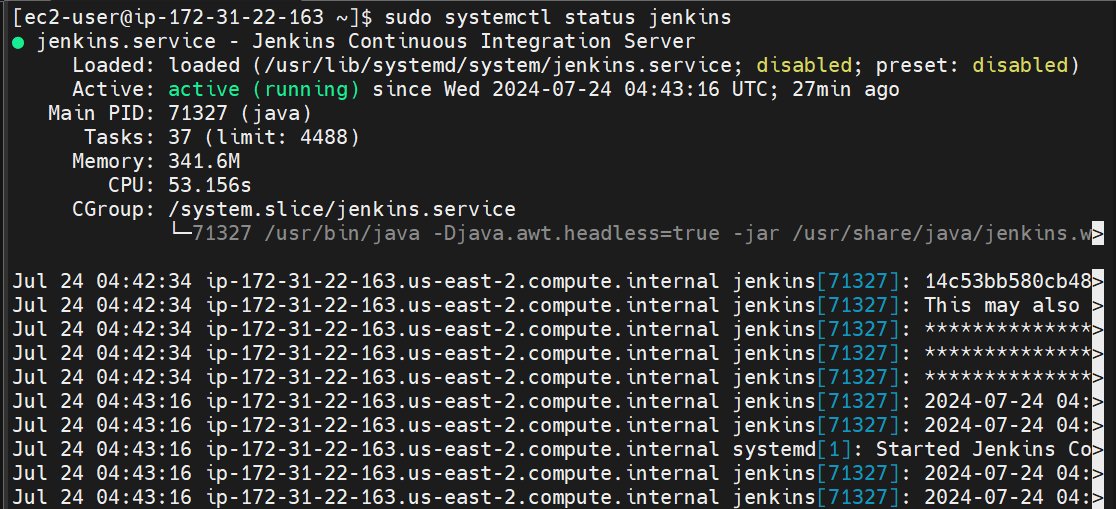
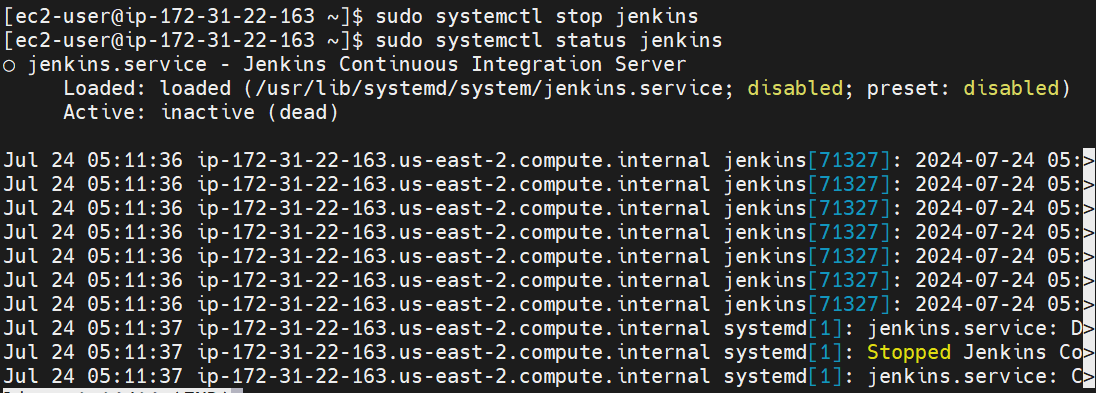
- Stop the Jenkins service and post before and after screenshots.
Before stopping the jenkins service:
After stopping the jenkins service:
Systemctl vs. Service:
- Differences between the systemctl and service commands.
Systemctl:- It works with systemd, the newer and more modern system and service manager. Provides detailed information about the service, including logs. Manages more than just services (e.g., system states like shutdown, reboot).
The syntax for systemctl is 'systemctl [command] [service_name]'. For example- To check the status of Docker: 'system status docker'
Service:- It works with older service managers like SysVinit and Upstart. Simpler and more traditional command structure. Simpler and more traditional command structure.
The syntax for service is 'service [service_name] [command]'. For example- To check the status of Docker: 'service docker status'
Additional Tasks
Automate Service Management:
- Write a script to automate the starting and stopping of Docker and Jenkins services.
- Make a file script.sh:
vim script.sh
- Write a script:
#!/bin/bash

# Function to start services
start_services() {
    echo "Starting Docker and Jenkins services..."
    sudo systemctl start docker
    sudo systemctl start jenkins
    echo "Services started."
}

# Function to stop services
stop_services() {
    echo "Stopping Docker and Jenkins services..."
    sudo systemctl stop docker
    sudo systemctl stop jenkins
    echo "Services stopped."
}
# Check if the user provided an argument
if [ $# -eq 0 ]; then
    usage
fi

# Handle the input argument
case "$1" in
    start)
        start_services
        ;;
    stop)
        stop_services
        ;;
esac
- Make the file executable:
chmod 700 script.sh
- Run the script:
./script.sh start
OR
./script.sh stop
Enable and Disable Services:
Use systemctl to enable Docker to start on boot and disable Jenkins from starting on boot.
Enable Docker to start on boot:
sudo systemctl enable dockerDisable Jenkins from starting on boot:
sudo systemctl disable jenkins
Analyze Logs:
- Use journalctl to analyze the logs of the Docker and Jenkins services.
Analyze Docker logs:
sudo journalctl -u dockerAnalyze Jenkins logs:
sudo journalctl -u jenkins
Conclusion
Linux package managers and systemd (with systemctl) form the backbone of software and service management in modern Linux distributions. Package managers ensure that software installations are handled smoothly and consistently, managing dependencies and updates efficiently. Meanwhile, systemd and systemctl provide robust tools for controlling and managing system services, enhancing system reliability and maintainability. Understanding these tools is crucial for effective Linux system administration.
HAPPY LEARNING!


